Keyboard shortcuts
Keyboard shortcuts are available for many options available in the top Toolbar and the Toolbars in each View. Various Windows keyboard shortcuts are also available and useful when working in Collections.
These shortcuts are listed throughout the Help where options and functionality are described, and a summary list is provided here for convenience.
If a keyboard shortcut has been associated with an option, it will be discoverable in a tooltip when hovering the cursor over a button:
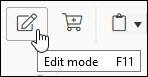
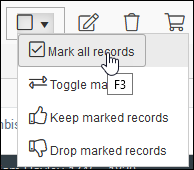
or option in a drop list:
 Standard Windows keyboard shortcuts
The following standard Windows shortcut can be used in Collections:
| Option | Keyboard shortcut | Details |
|---|---|---|
|
Copy selected text |
CTRL+C |
Select text and copy it to the Windows clipboard. |
|
Paste text |
CTRL+V |
Paste text copied last to the Windows clipboard. |
|
Cycle through open Windows /applications |
ALT+TAB |
Switch between any open windows / applications. This can be useful if you have opened one or more Views in their own browser Window. |
Main menu
The following option in the Main menu has a keyboard shortcut assigned:
| Option | Keyboard shortcut | Details |
|---|---|---|
|
F8 |
Commence a new search. The Select data source box will display from which you select the data source |
Top Toolbar
The following options in the top Toolbar have a keyboard shortcut:
| Option | Icon | Keyboard shortcut | Details | ||||||||||||||||||||
|---|---|---|---|---|---|---|---|---|---|---|---|---|---|---|---|---|---|---|---|---|---|---|---|
|
Record navigation |
|
Various |
Following a search or when more than one record has been added or imported, records can be displayed in one or more Views. It is possible to move through the list of records using the Record navigation buttons or keyboard shortcut:
As you move through a list of records the current record See Display and navigate records for more details. |
||||||||||||||||||||
|
|
F7 |
Note: Select Search [F8] in the Main menu to commence a search in a different data source. |
|||||||||||||||||||||
|
|
F9 |
Displays the current record |
|||||||||||||||||||||
|
|
F1 |
Open Help View. This View provides a description of a field's purpose and other data entry instructions. |
|||||||||||||||||||||
|
|
CTRL+P |
Open the Output formats box will display. Select a template and/or procedure for printing record data. |


 Result set View
The following options in the Result set View toolbar have a keyboard shortcut:
| Option | Icon | Keyboard shortcut | Details |
|---|---|---|---|
|
Mark all records |
|
F3 |
Select this option to mark This option is available from the Mark records |
|
Toggle marks |
|
F4 |
Select this option to toggle the checkbox mark from marked This option is available from the Mark records |
|
Keep marked records |
|
SHIFT+F3 |
Select this option to discard unmarked This option is available from the Mark records |
|
|
CTRL+H |
The Search and replace function can be used to search the current |
|
|
|
SHIFT+F4 |
When editing a linked field, open the Find data for the field box. |

 .
. drop list in the Result set View toolbar.
 and vice versa for all records listed in both Result set View and Gallery View.
 Record details View
The following options in the Record details View toolbar have a keyboard shortcut:
| Option | Icon | Keyboard shortcut | Details |
|---|---|---|---|
| New record |

|
ALT+N |
|
|
|
SHIFT+F5 |
Create a copy of the current record |
|
| Save record |

|
CTRL+S |
Save the current record. |
|
|
F11 |
Edit the current record. |
|
|
Add / remove the current record to / from a saved search |
|
F10 |
Add / remove the current record to / from a saved search |
|
|
CTRL+D |
With the cursor in a field in Edit mode Note: In Display mode, right-click a field and select Copy field from the context menu. |
|
|
|
CTRL+K |
With the cursor in a field in Edit mode, paste value(s) copied to the Collections clipboard for this field. |
|
|
|
CTRL+J |
In Edit mode, paste all values stored in the Collections clipboard into the current record. |
|
|
|
CTRL+M |
With the cursor in a multilingual field in Edit mode, open the Multilingual Data box and edit data in every available language. |
|
|
|
CTRL+ENTER |
With the cursor in a field occurrence |
|
|
|
CTRL+Down arrow2 |
Change the order of occurrences. Select Move row down / up to reorder occurrences: if the active field is a member of a group of fields, all fields in the group will be moved together. Note: If automatic sorting of occurrences has been specified by your Application Administrator, any changes you make to the order will be overridden: occurrences will be sorted automatically (ascending or descending) when the record is saved. Reordering occurrences
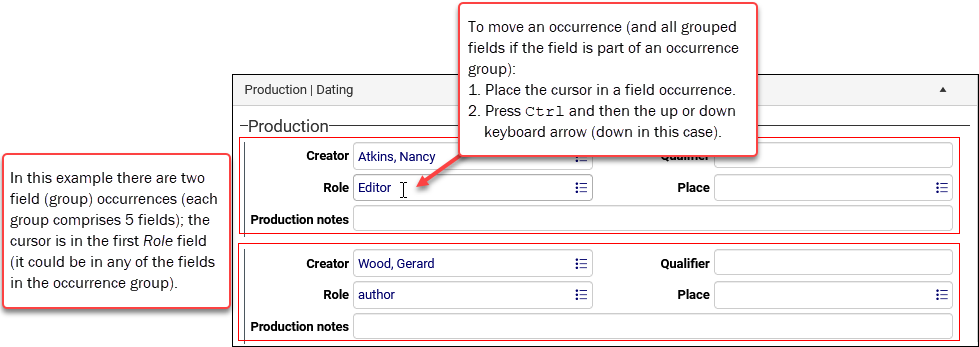
In this example, there are two occurrence groups (two creators are listed) with five fields in each occurrence group. The cursor is in the Role field in the first occurrence group (it could be in any one of the five fields in the group):
To move the entire occurrence group down:
|
|
|
|
CTRL+Up arrow4 |
||
|
|
ALT+Down arrow |
Open all panels in Record details View. |
|
|
|
ALT+Up arrow |
Close all panels in Record details View. |
|
|
|
SHIFT+F4 |
With the cursor in a Linked field |